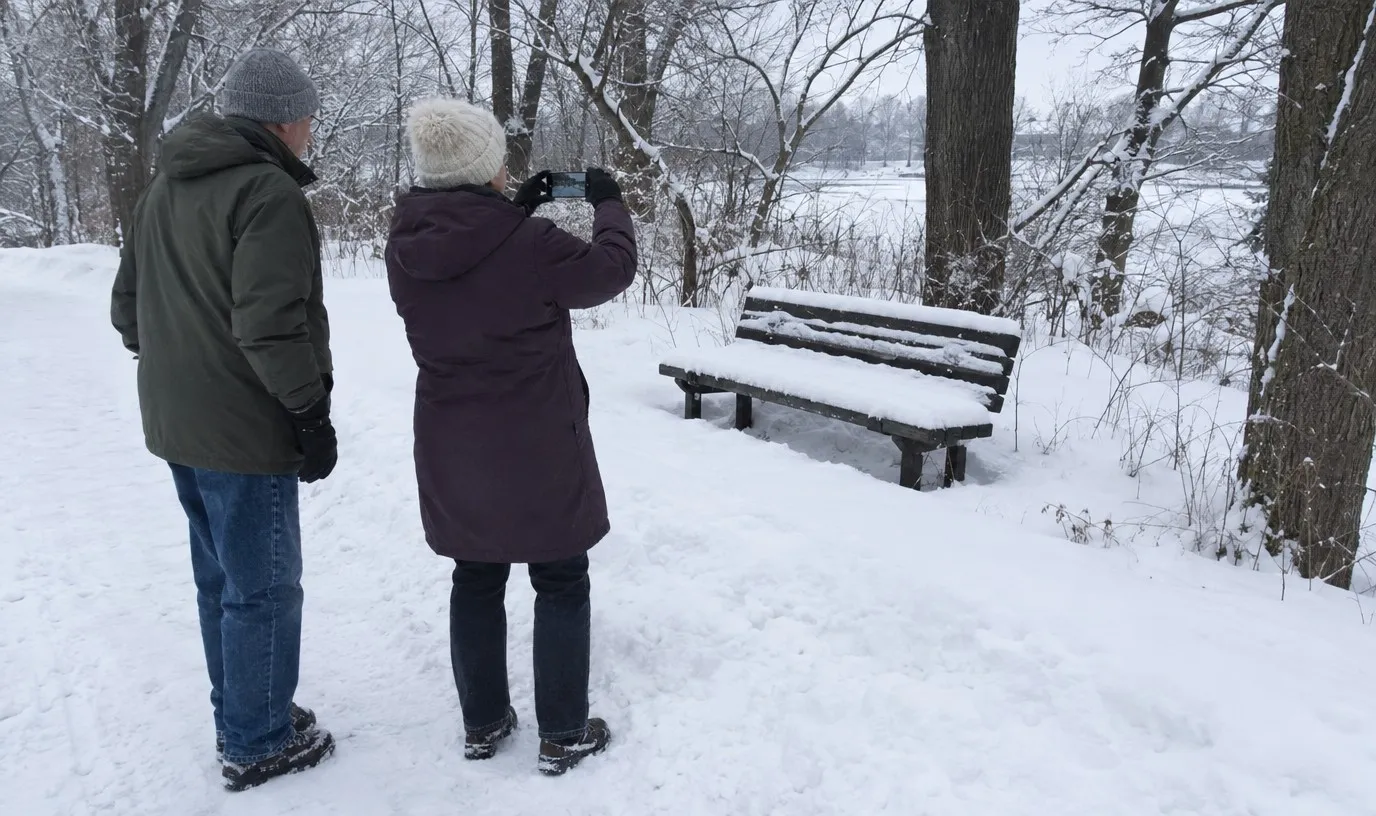
To make snow look white on a phone, tap the snow, drag the exposure slider up a little and lock it before you shoot.
Nothing is wrong with your phone. It sets its own brightness before every photo.
A frame full of snow can fool it.
So the path that looked bright white on your walk comes back dull, gray and sometimes a little blue. A few seconds of adjusting fixes the gray, with no editing app and no real camera.
Why the phone turns snow gray
A frame that is mostly white often comes out darker than your eye saw it.
An automatic exposure aims for an average brightness.
It treats the scene as if it were a mix of light and dark things. The phone pulls the brightness down to reach that average, so the snow comes out gray.
You only need to tell the phone to go brighter.
This is the opposite of a gray sky day, where you drag the slider down to keep the sky from going white. Snow goes the other way: drag up.
Brighten it and lock it
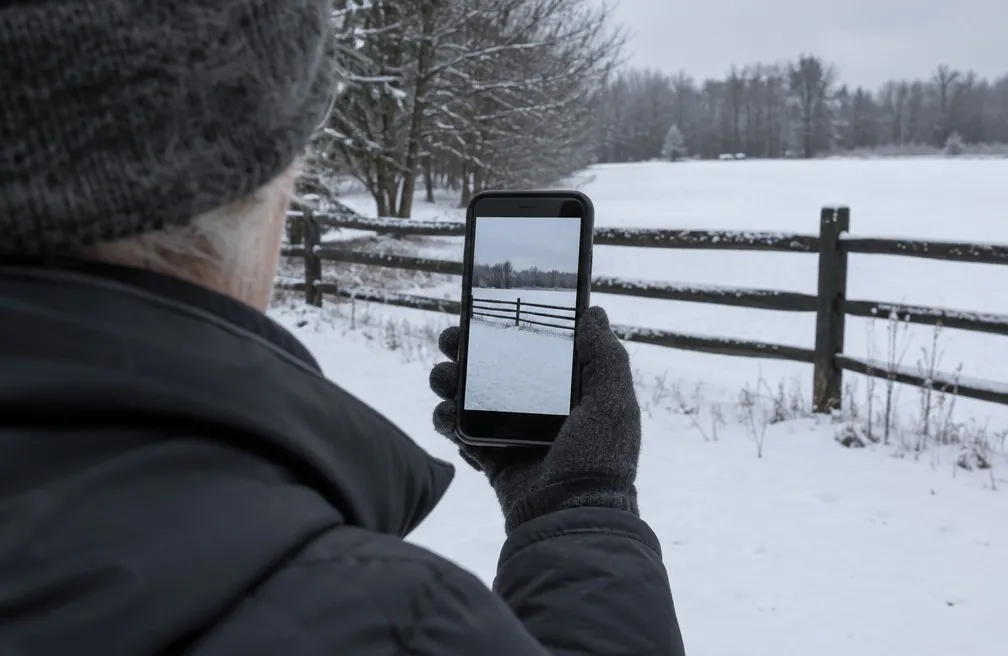
Exposure means how bright the photo is. On an iPhone, the slider sits right beside the spot you tap. Many other phones have a similar control: tap, then look for a sun icon or a slider next to the tap.
You will hold the setting with AE/AF Lock, which keeps the brightness and the focus where you set them.
Four moves, in this order:
- Tap the snow. Tap the bright area you want to look white. A box appears.
- Drag up. Slide your finger up beside the box until the snow looks white.
- Lock it. Touch and hold the box until AE/AF Lock appears.
- Shoot. Take the photo, then look at the result on screen.
The lock keeps your brightness for the next shots, until you tap the screen again.
So you can take several shots in a row without setting it again.
If you use the Exposure control in the camera menu instead, the iPhone resets it the next time you open Camera. To keep it, go to Settings > Camera > Preserve Settings and turn on Exposure Adjustment.
How far to push it
Nikon tells its camera owners to brighten snow a little at a time, starting with a small step.
On a phone, drag a short way, look, then drag a short way again if the snow is still gray.
If the white starts to look flat and the footprints lose their shape, that is a sign you have pushed too far.
Come back down a notch.
When the snow looks blue
Brightening makes the snow white, but it does not take out the blue in shaded snow.
Snow in shade or under cloud often looks blue on a phone screen. In shade, one fix is to step a few paces to where the snow catches some open light, and shoot there.
Or keep the blue as the cold mood of the picture.
What to point the phone at
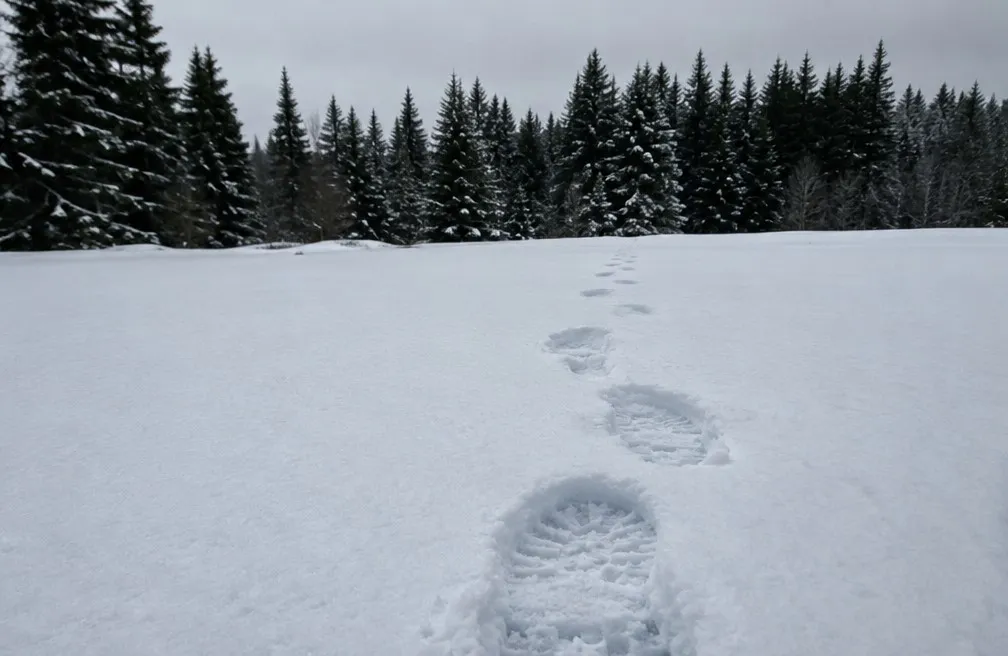
Put one of these in the frame with the snow:
- Tracks. Footprints or tire marks lead the eye into the frame.
- One dark subject. A bench, a fence post or a person in a dark coat stands out against the white.
- Fence lines. A row of posts or rails draws a line across the snow.
The simple composition habits apply here too: keep it off dead center and let the white around it breathe.
Falling snow shows up against something dark. Put a row of evergreens or a dark wall behind the flakes, and they read as flakes instead of vanishing into the white.
Before you walk on
In freezing air the phone can shut down, so keep the phone warm in an inner pocket between shots, as the page on phone camera in cold weather explains.
On the first frame of your next snowy walk, tap the snow, drag up, lock and look at the screen. Done right, that first frame already has white snow in it.
Sources: Apple, Use iPhone camera tools to set up your shot; Nikon USA, Tips for Taking Fun Pictures of Your Kids in the Snow.